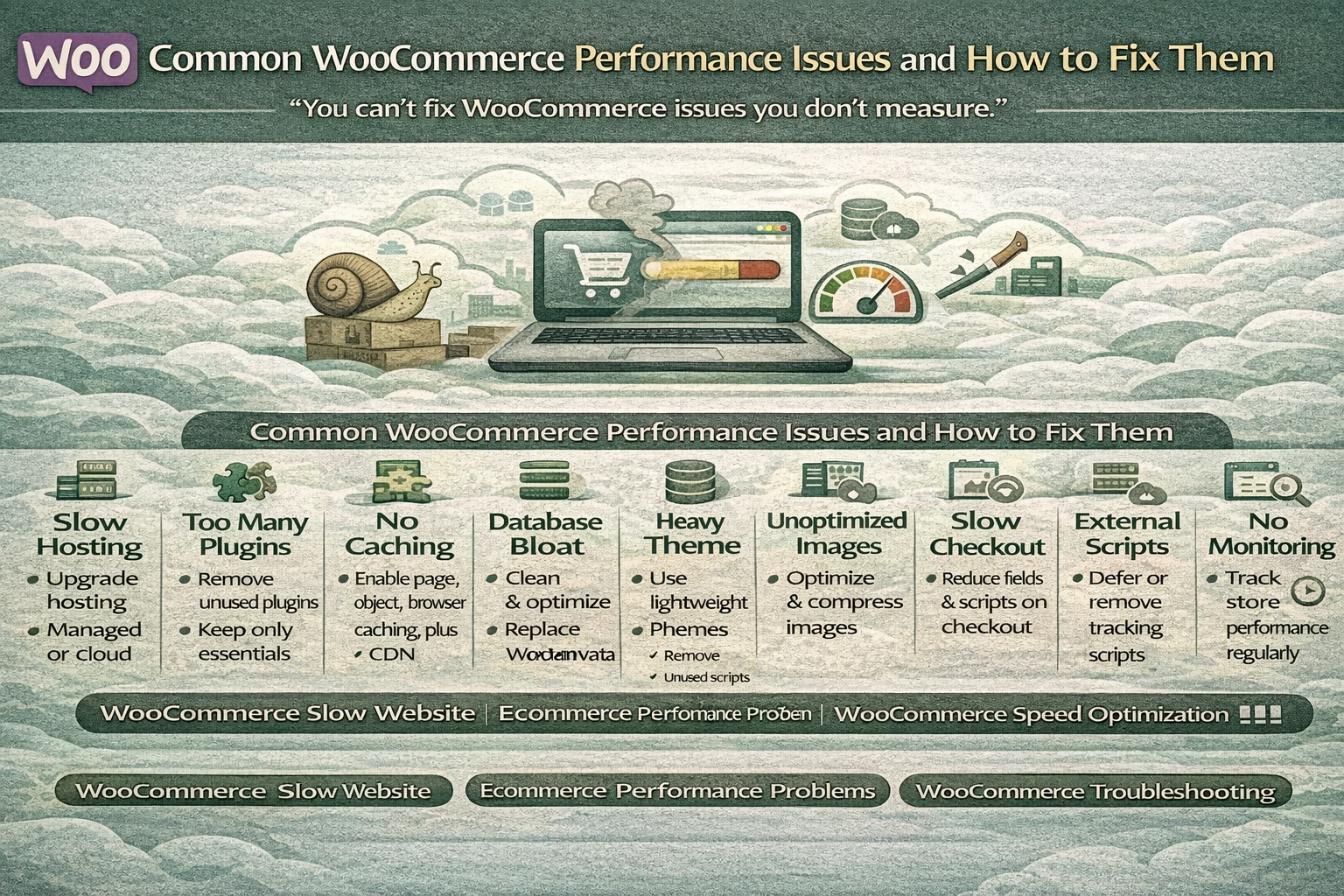

A slow WooCommerce website doesn’t just frustrate users — it directly reduces conversions, increases cart abandonment, and hurts search engine rankings.
If your store feels sluggish, checkout takes too long, or pages load inconsistently, you’re likely facing common WooCommerce performance issues that can be fixed with the right approach.
“Most WooCommerce speed problems aren’t platform issues — they’re configuration issues.”
Why WooCommerce Websites Become Slow
WooCommerce is powerful, but performance problems often appear due to:
- Poor hosting
- Too many plugins
- Heavy themes
- Database bloat
- No caching
- Unoptimized images
- Excessive scripts
Understanding the root cause is the key to fixing a WooCommerce slow website effectively.
1. Slow Hosting Environment
Symptoms
- High server response time
- Slow admin panel
- Delayed checkout
Why It Happens
Shared or low-quality hosting can’t handle WooCommerce database queries.
How to Fix
- Move to managed WooCommerce hosting
- Use VPS or cloud hosting
- Enable server-level caching
- Upgrade PHP to latest stable version
“You can’t fix slow hosting with plugins.”
2. Too Many Plugins Installed
Symptoms
- Long page load time
- Conflicts after updates
- Slow backend
Why It Happens
Each plugin adds PHP execution, database queries, and scripts.
How to Fix
- Remove unused plugins
- Replace heavy plugins with lightweight alternatives
- Avoid multiple plugins doing the same task
- Test performance after every installation
Fewer plugins = faster WooCommerce.
3. No Proper Caching
Symptoms
- Pages reload every visit
- High CPU usage
- Slow repeat visits
Why It Happens
WooCommerce requires smart caching configuration.
How to Fix
- Enable page caching (exclude cart & checkout)
- Use object caching (Redis/Memcached)
- Enable browser caching
- Use a CDN for static assets
Caching is essential for performance stability.
4. Database Bloat
Symptoms
- Slow admin dashboard
- Delayed order processing
- High database load
Why It Happens
WooCommerce stores accumulate:
- Expired transients
- Old sessions
- Post revisions
- Orphaned metadata
How to Fix
- Clean expired transients
- Optimize database tables
- Limit post revisions
- Schedule regular cleanup
“A bloated database silently slows everything.”
5. Heavy or Poorly Coded Theme
Symptoms
- Slow frontend loading
- Poor Core Web Vitals
- High CLS and LCP
Why It Happens
Some themes include excessive JavaScript, animations, and page builders.
How to Fix
- Use a lightweight WooCommerce theme
- Remove unused theme features
- Minify CSS and JS
- Avoid unnecessary page builders
Theme performance matters more than design complexity.
6. Unoptimized Images
Symptoms
- Large page size
- Slow product pages
- Poor mobile speed
Why It Happens
High-resolution images uploaded without compression.
How to Fix
- Compress images automatically
- Use WebP format
- Enable lazy loading
- Avoid oversized product images
Images are often the biggest speed culprit.
7. Slow Checkout Page
Symptoms
- Checkout lag
- Cart updates delay
- Abandoned carts
Why It Happens
Checkout pages load unnecessary scripts and tracking tools.
How to Fix
- Reduce checkout fields
- Disable unused scripts on checkout
- Avoid heavy analytics tools
- Use fast payment gateways
“Every second added to checkout reduces revenue.”
8. External Scripts & Tracking Tools
Symptoms
- High Total Blocking Time (TBT)
- Long Time to Interactive (TTI)
Why It Happens
Third-party scripts like chat tools, heatmaps, and trackers block rendering.
How to Fix
- Remove unnecessary tracking scripts
- Defer non-critical JavaScript
- Load scripts asynchronously
9. No CDN for Global Traffic
Symptoms
- Slow loading for international users
- High server bandwidth usage
How to Fix
- Use a CDN (Cloudflare, Bunny.net, Fastly)
- Cache images, CSS, JS globally
- Reduce TTFB
A CDN is mandatory for growing stores.
10. No Performance Monitoring
Symptoms
- Unknown speed drops
- Random performance issues
How to Fix
Use tools like:
- Google PageSpeed Insights
- Lighthouse
- GTmetrix
- Query Monitor
- New Relic
“You can’t fix WooCommerce issues you don’t measure.”
Quick WooCommerce Performance Fix Checklist
✔ Upgrade hosting
✔ Remove unused plugins
✔ Enable caching
✔ Clean database
✔ Optimize images
✔ Reduce checkout scripts
✔ Use CDN
✔ Monitor performance regularly
Conclusion
Most WooCommerce issues related to speed are fixable without changing platforms. A WooCommerce slow website is usually the result of poor configuration — not WooCommerce itself.
With proper hosting, caching, plugin control, and database optimization, WooCommerce can perform fast and reliably even under heavy traffic.
“Performance problems aren’t permanent — neglect makes them feel that way.”